IDENTIFY YOUR PLATFORM
NEW PLATFORM
You can upload photos up to 25 megabytes in file size in any of the following formats: png, jpg or jpeg.
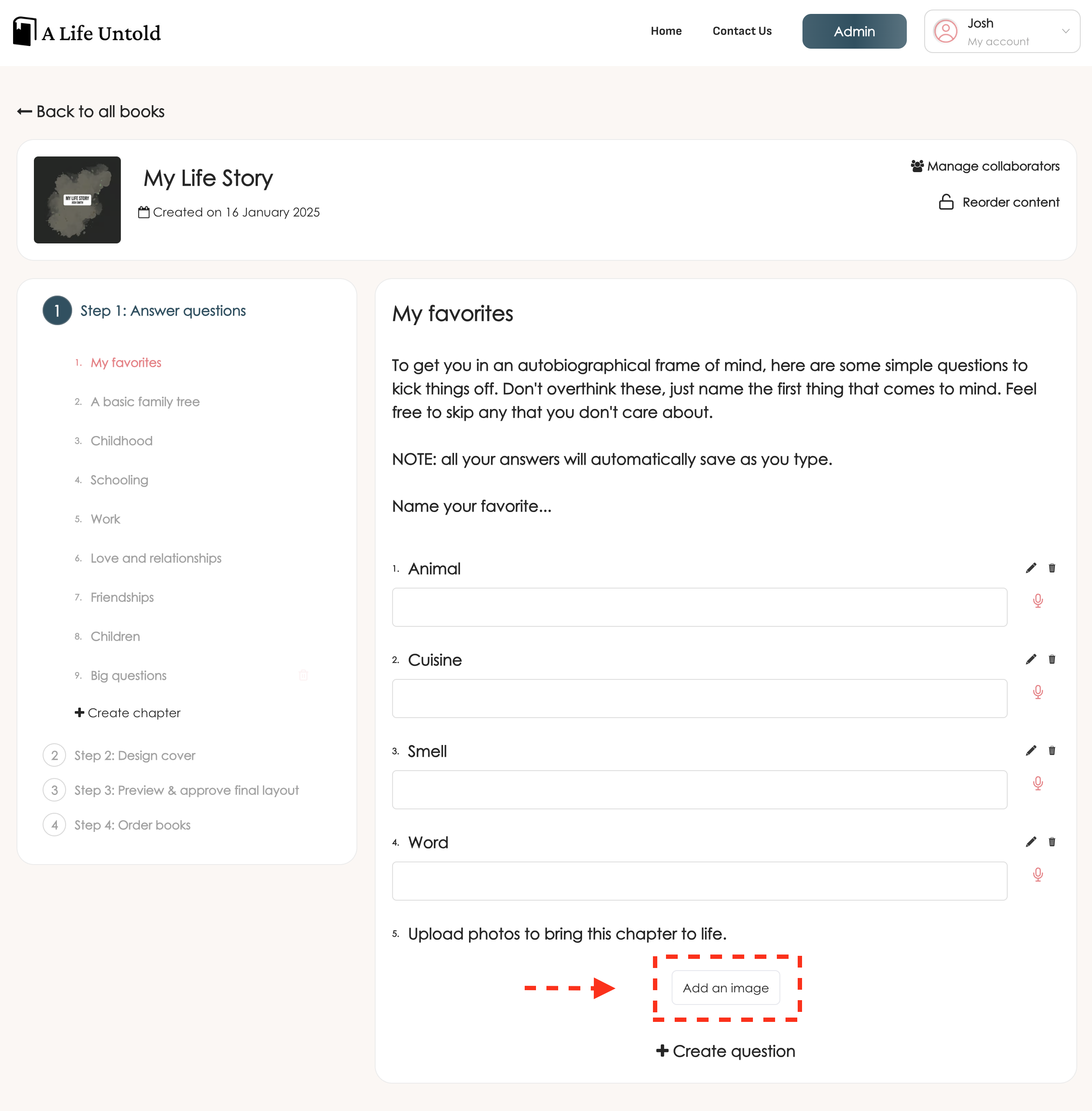
STEP 1: Scroll to the very bottom of any chapter in your book and find the button to "Add an image".
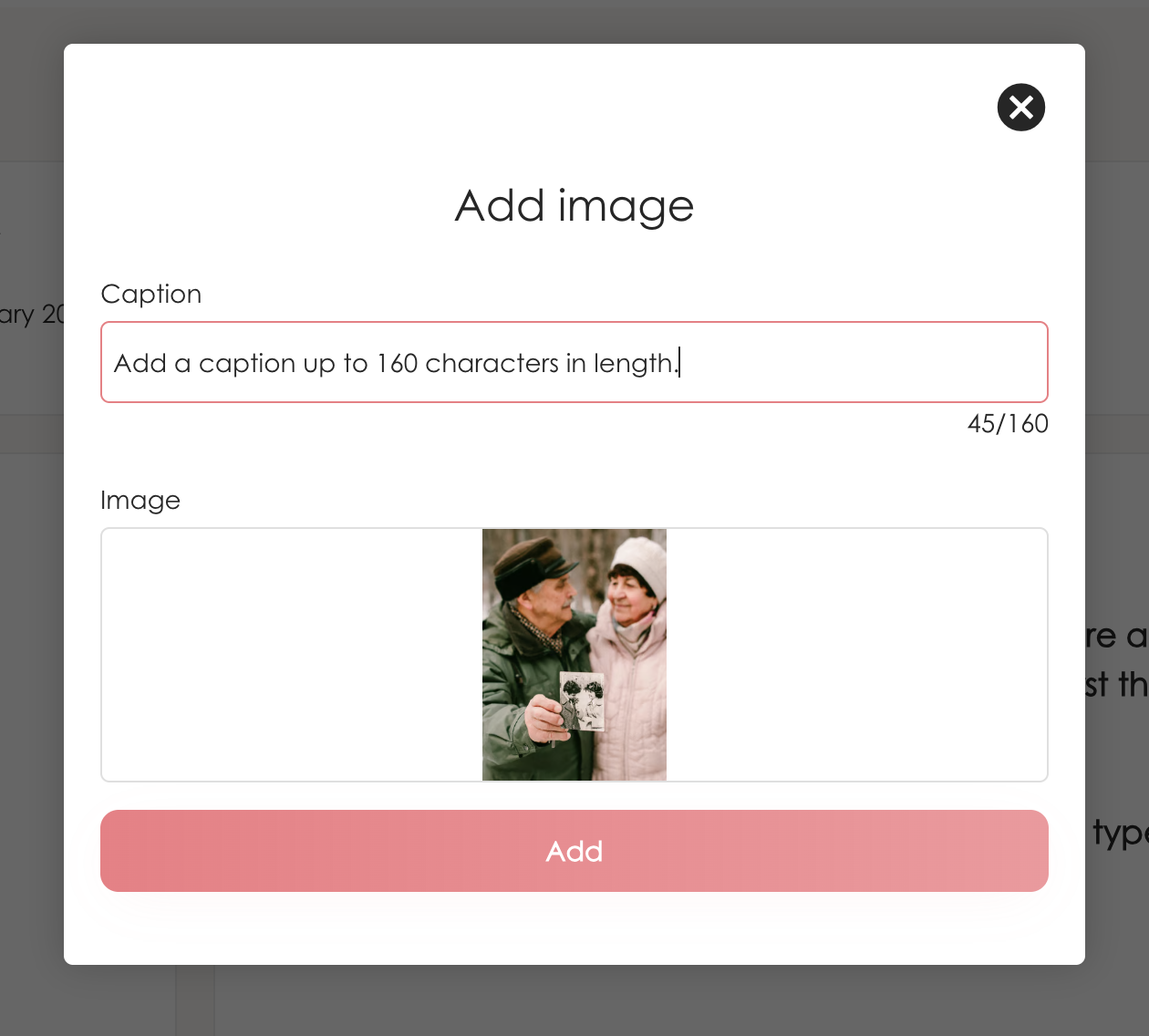
STEP 2: Click to upload an image from your computer or mobile device. Add a caption up to 160 characters in length and click "Add".
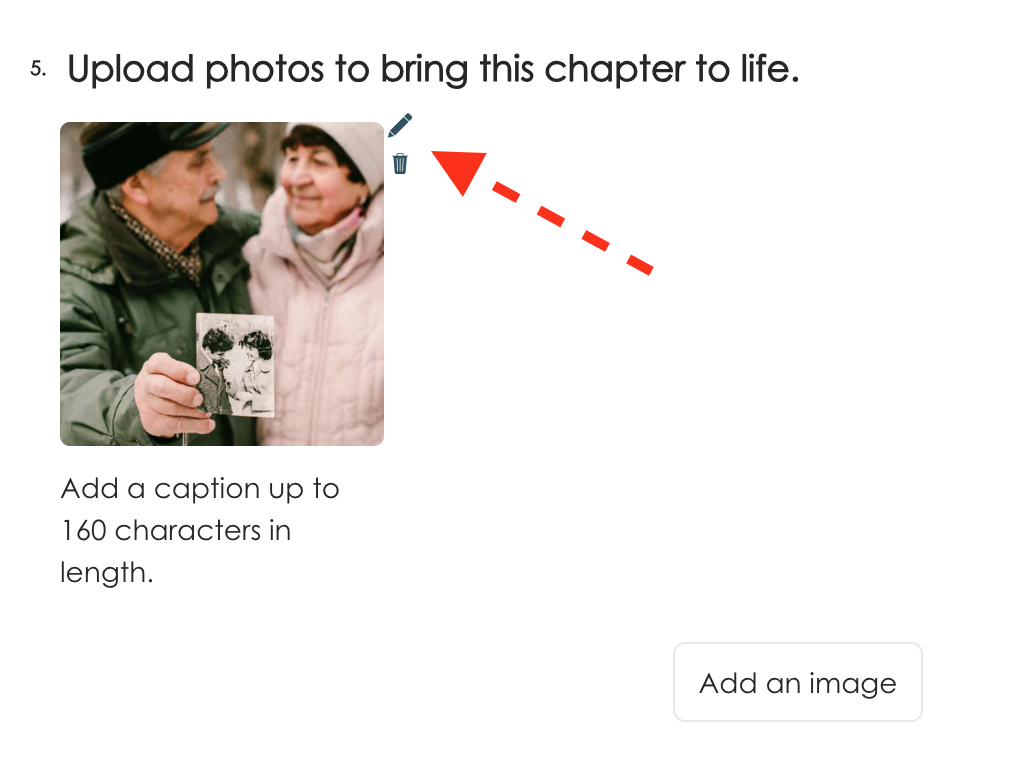
STEP 3: Use the pencil icon to edit or the trash can to delete your image.
PLEASE NOTE: If your preview is cropped, don’t worry—your full image is saved and will appear correctly in your book.
STEP 4: If you have added multiple photos, you will be able to reorder them by unlocking the "Reorder content" lock in the top right corner of the screen, then dragging and dropping the photos with your mouse.

LEGACY PLATFORM
You can upload photos up to 25 megabytes in file size in any of the following formats: png, gif, jpg or jpeg
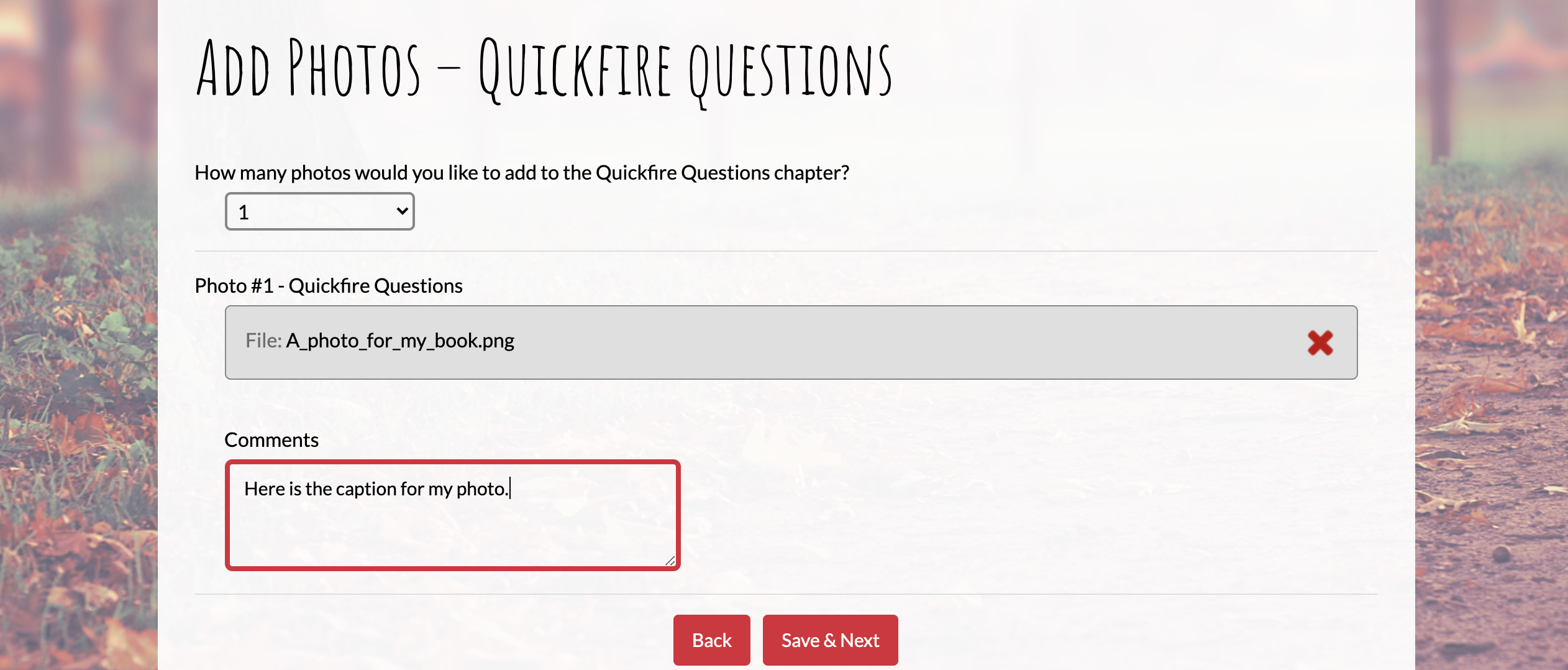
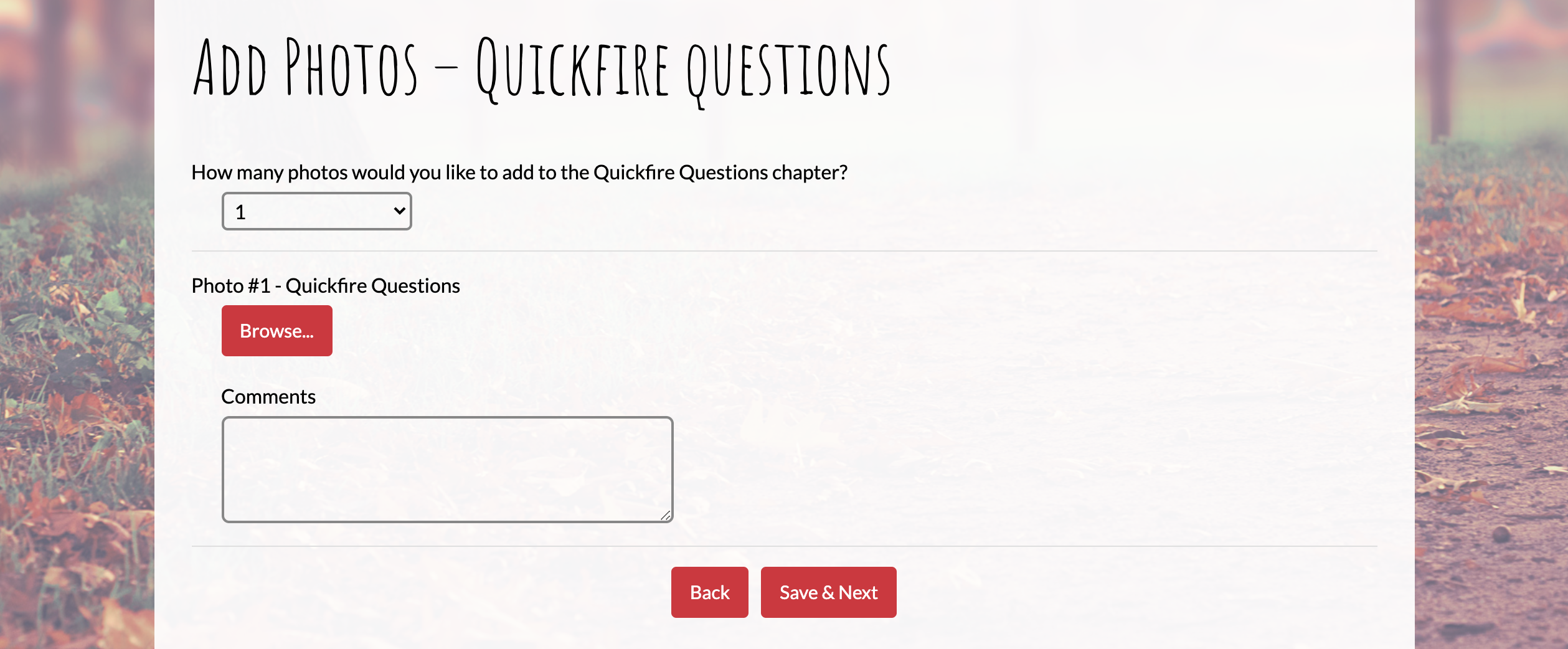
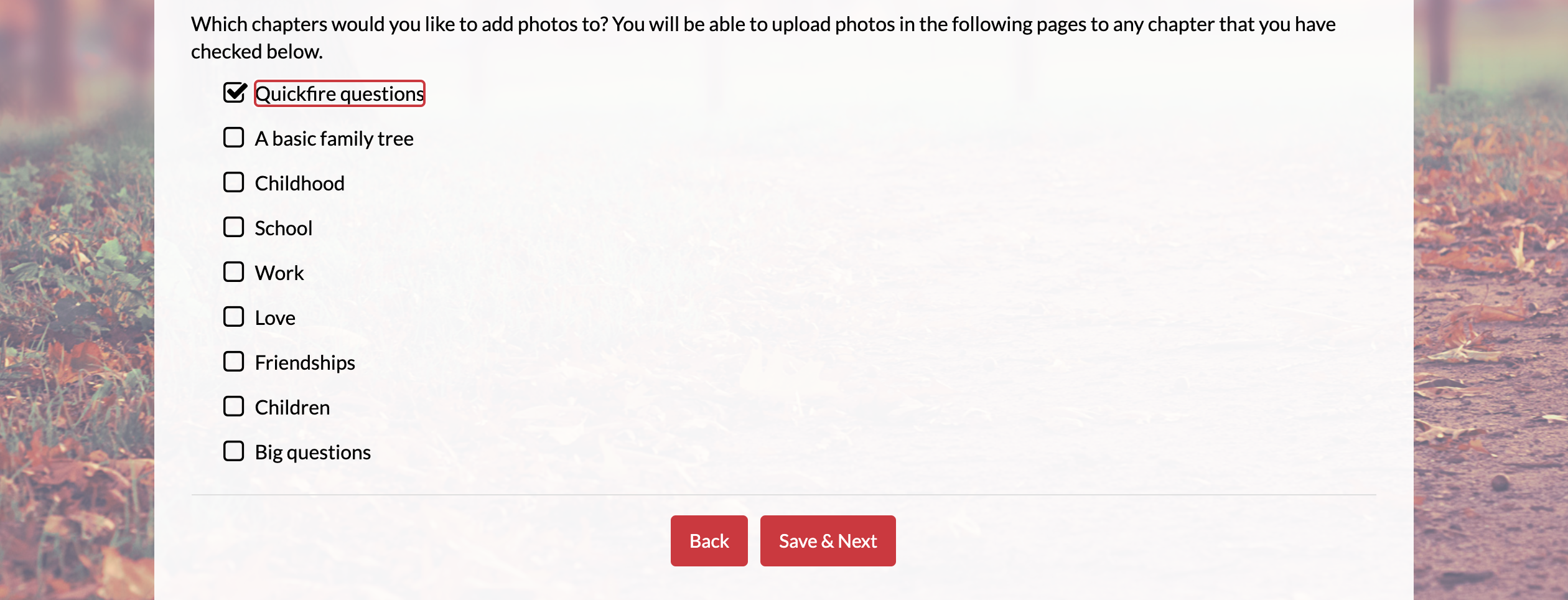
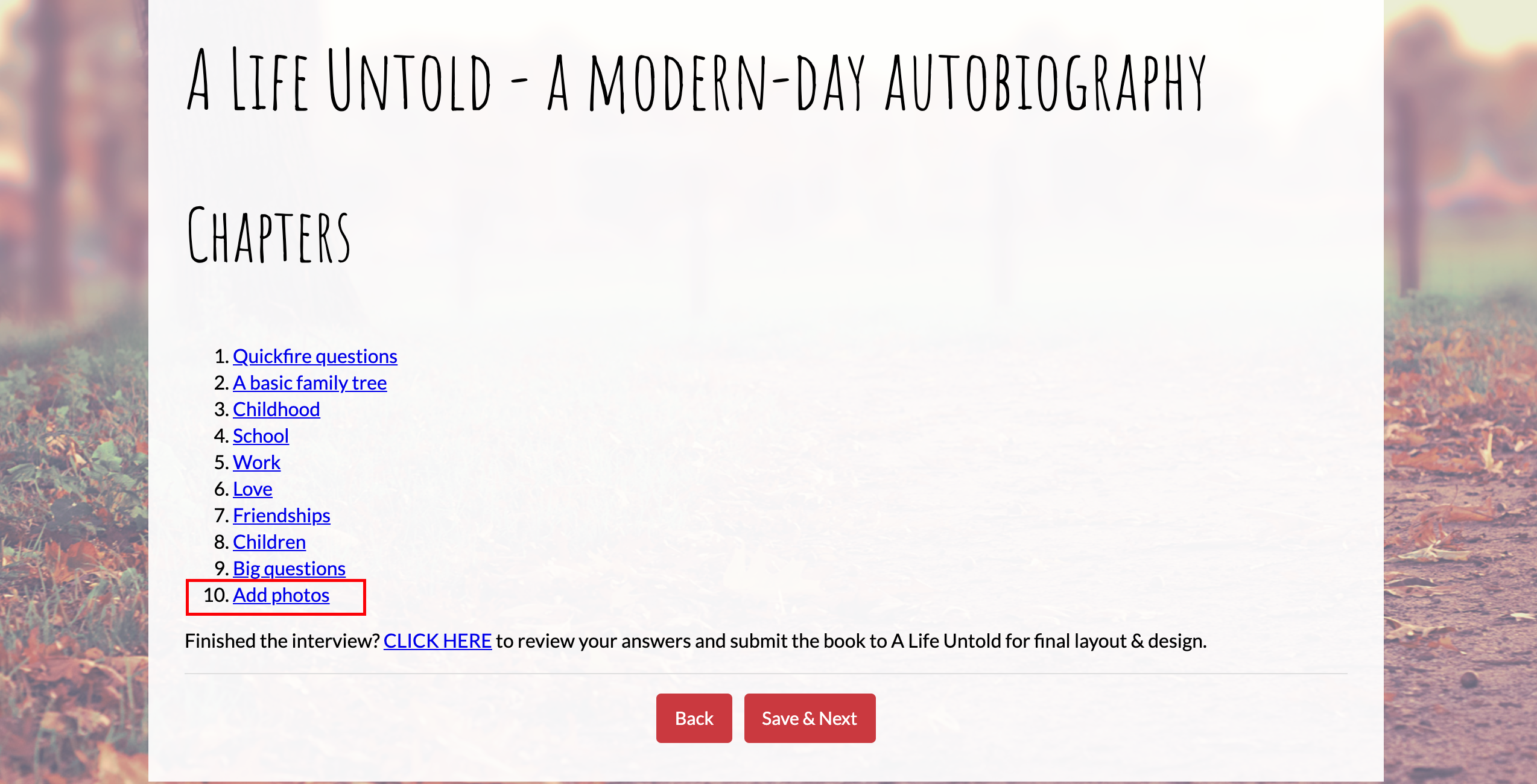
STEP 1: Navigate to the "Add photos" chapter in your online interview.STEP 2: Select which chapters you would like to add photos in your book.STEP 3: Select how many photos you'd like to add to that chapter, then click "Browse..." to find a photo on your computer or mobile device.STEP 4: Add a caption to your photo in the "Comments" box.STEP 5: Click "Save & Next" to save the uploaded photo(s) to your book.